Cricut projects can be a fun way to express creativity and personalize items. One essential tool that enhances these projects is Cricut Printable Transfer Paper, which allows for easy application of designs onto various surfaces.
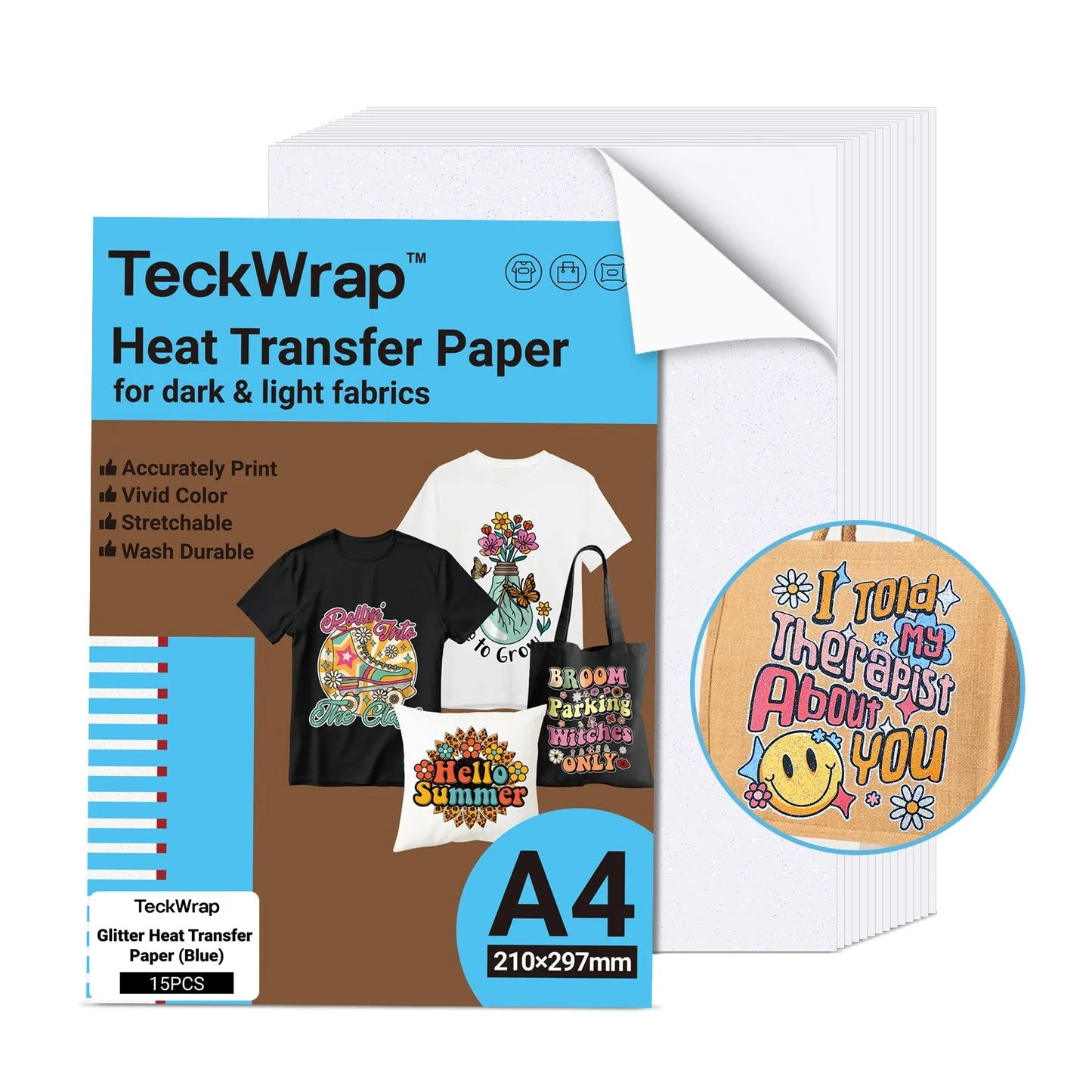
Cricut Printable Transfer Paper
Cricut Printable Transfer Paper
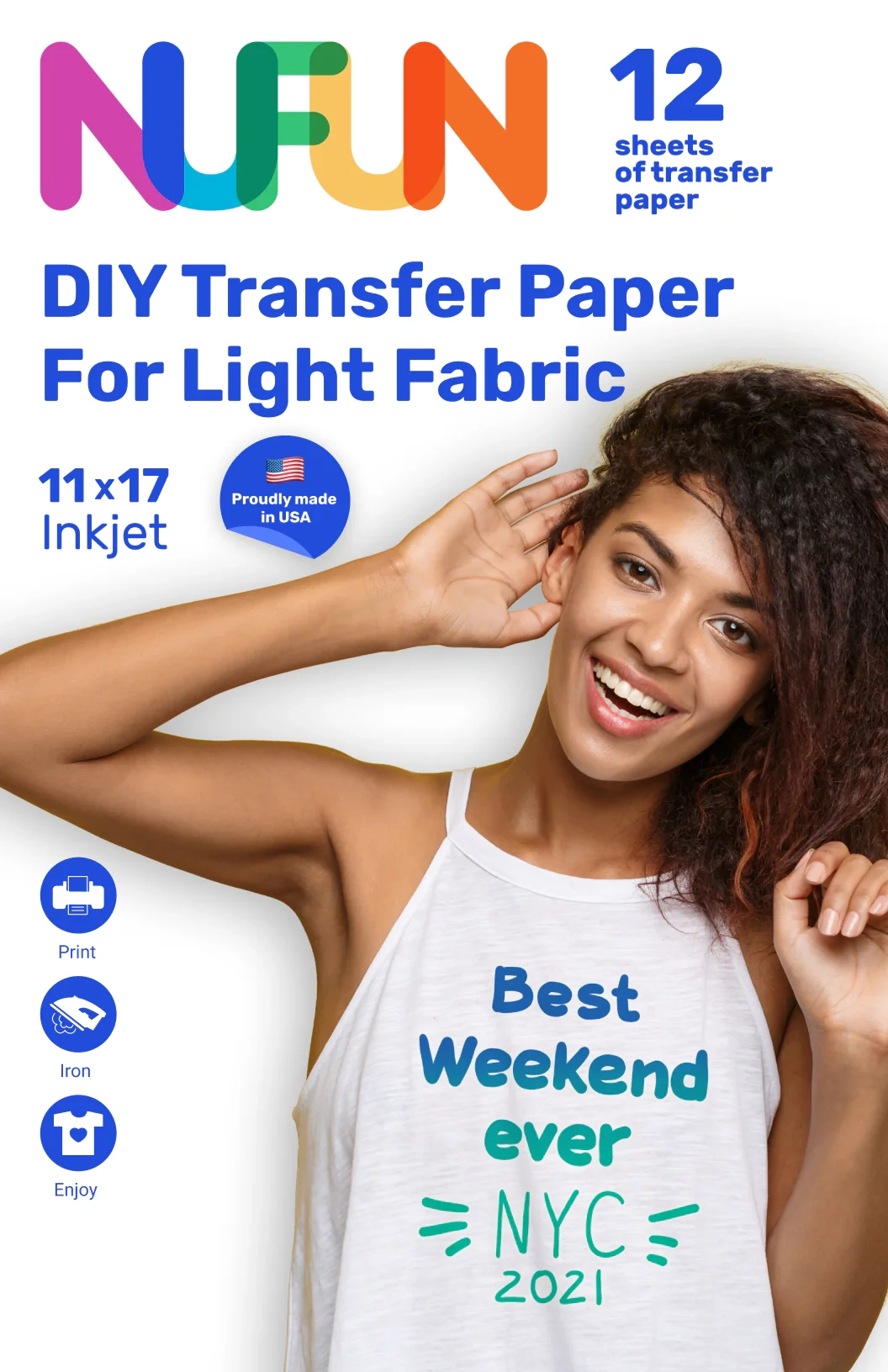
Cricut Printable Transfer Paper is designed for use with inkjet printers, making it accessible for most users. Simply print your design on the transfer paper, cut it out, and apply it to your desired surface.
This transfer paper works well on fabrics like cotton and polyester, ensuring vibrant colors and clear images. It’s ideal for t-shirts, tote bags, and even pillowcases, allowing for endless creative possibilities.
One of the standout features of Cricut Printable Transfer Paper is its durability. Once applied, designs withstand multiple washes without fading or peeling, making your creations last longer and look great.
Using Cricut Printable Transfer Paper is not just easy; it also opens up a world of customization. Whether you’re making gifts or personalizing your wardrobe, this product is a game-changer for any crafting enthusiast.
Incorporating Cricut Printable Transfer Paper into your projects can elevate your crafting experience. With its ease of use and impressive results, it’s a must-have for anyone looking to create unique designs effortlessly.
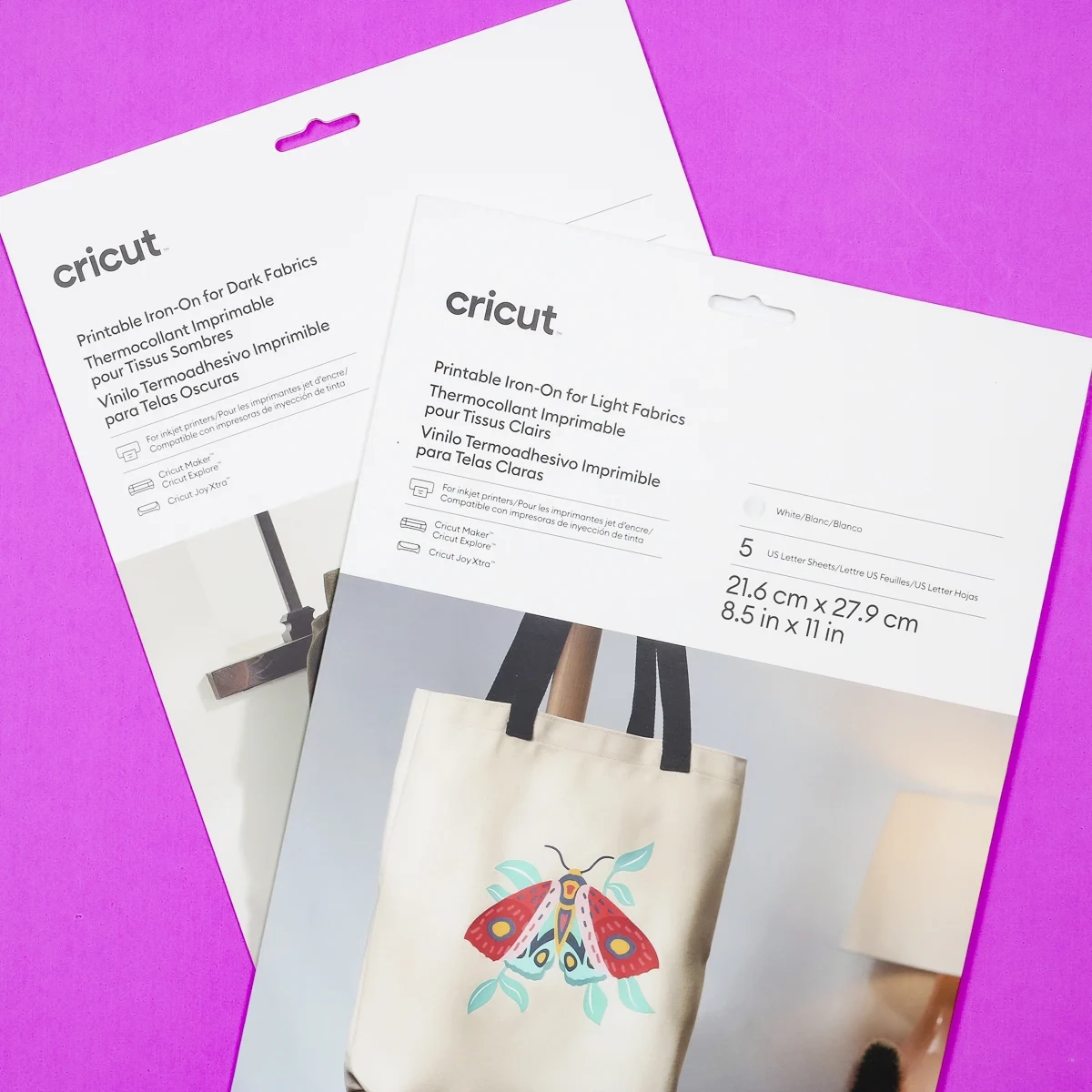
How To Use Cricut Printable Iron on Angie Holden The Country
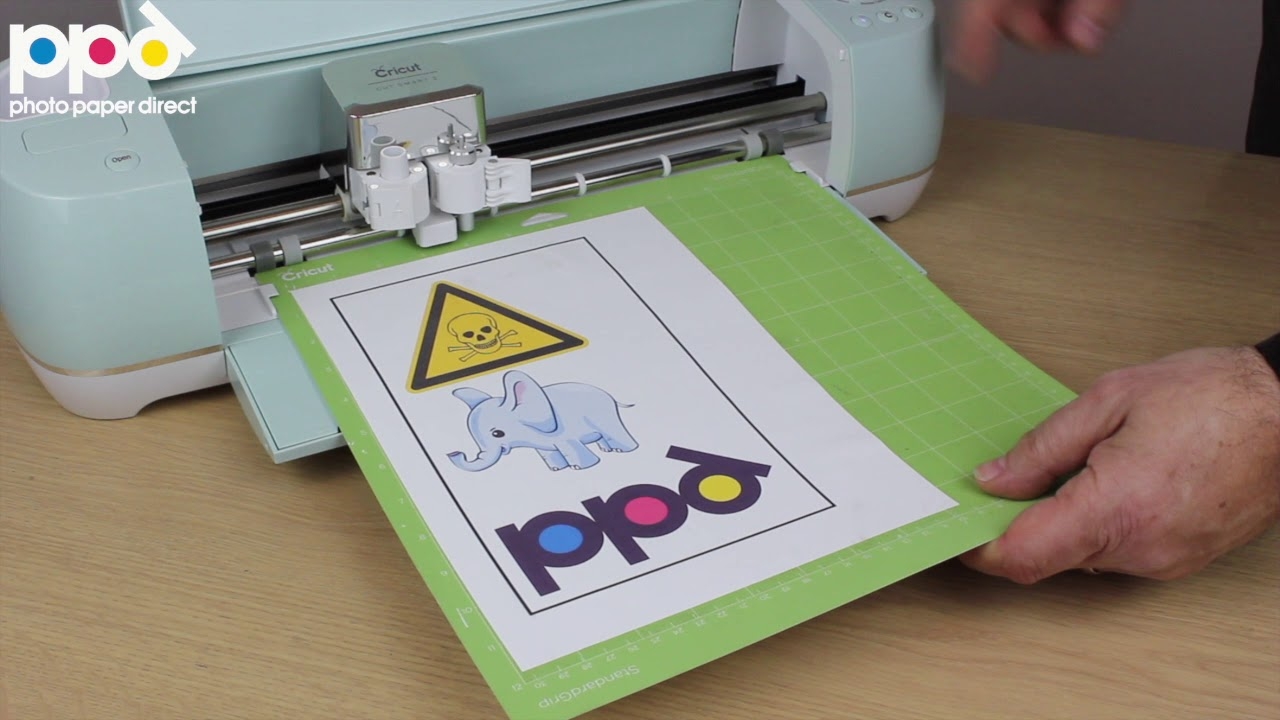
Dark T Shirt Transfer Paper And Cricut Cutting Machine Demonstration
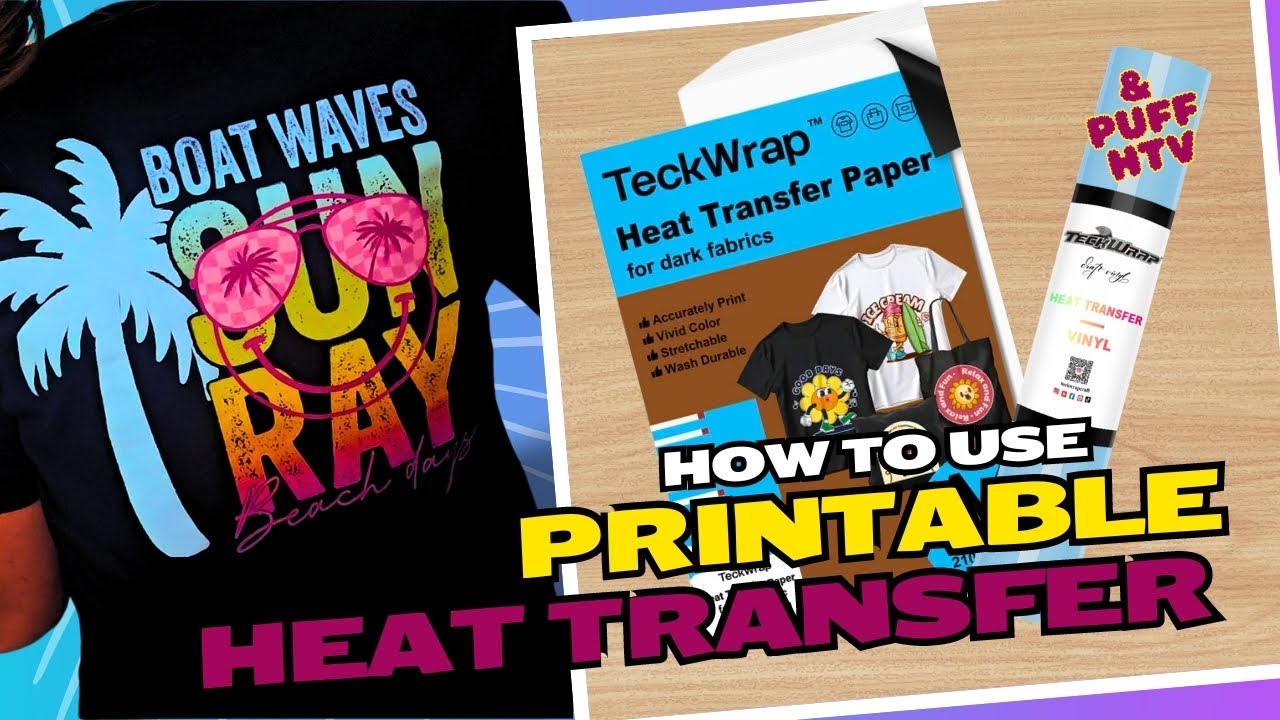
How To Use Printable Heat Transfer Paper Cricut Print Then Cut Tutorial
Starcraft Inkjet Printable Transfers Printable Transfers Cricut

Printable Iron On Instructions Help Center