Many people find themselves needing lined paper for various tasks, from note-taking to journaling. Fortunately, Microsoft Word offers a simple solution to create lined paper that suits your needs perfectly.
Microsoft Word Lined Paper
Microsoft Word Lined Paper
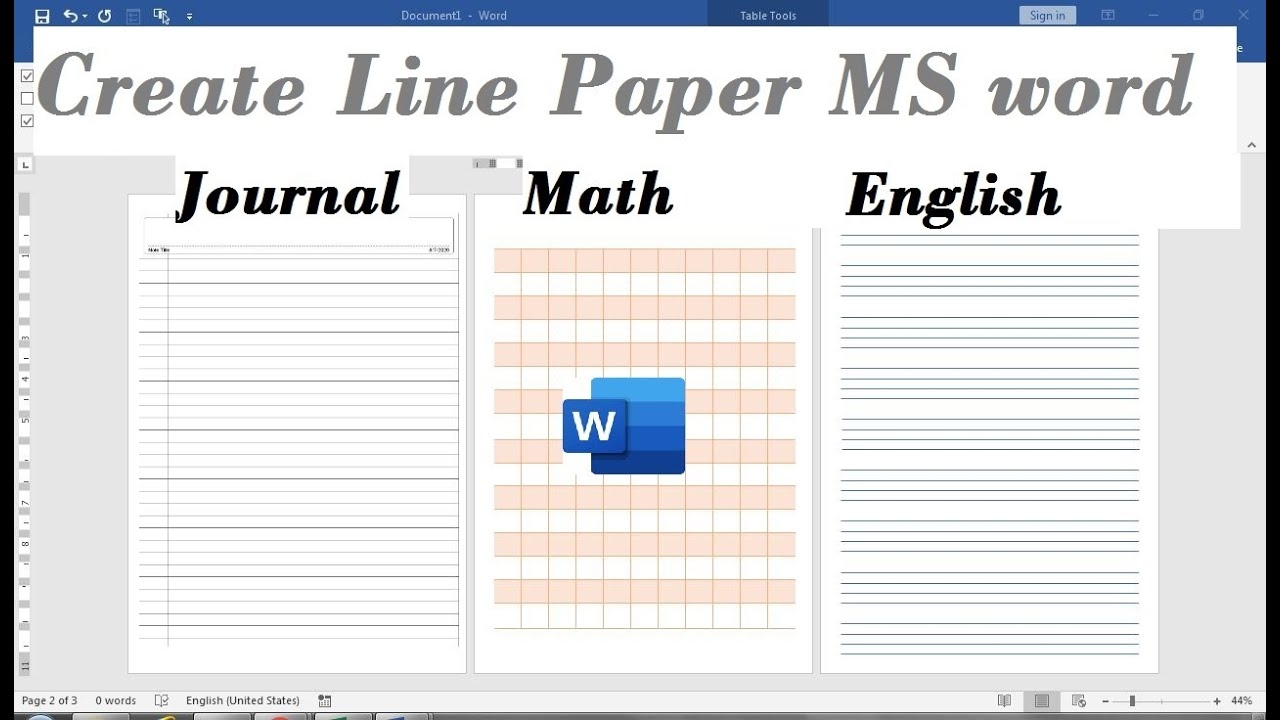
To create Microsoft Word lined paper, start by opening a new document. Then, go to the “Page Layout” tab and select “Borders.” Choose “Box” and adjust the settings to create horizontal lines.
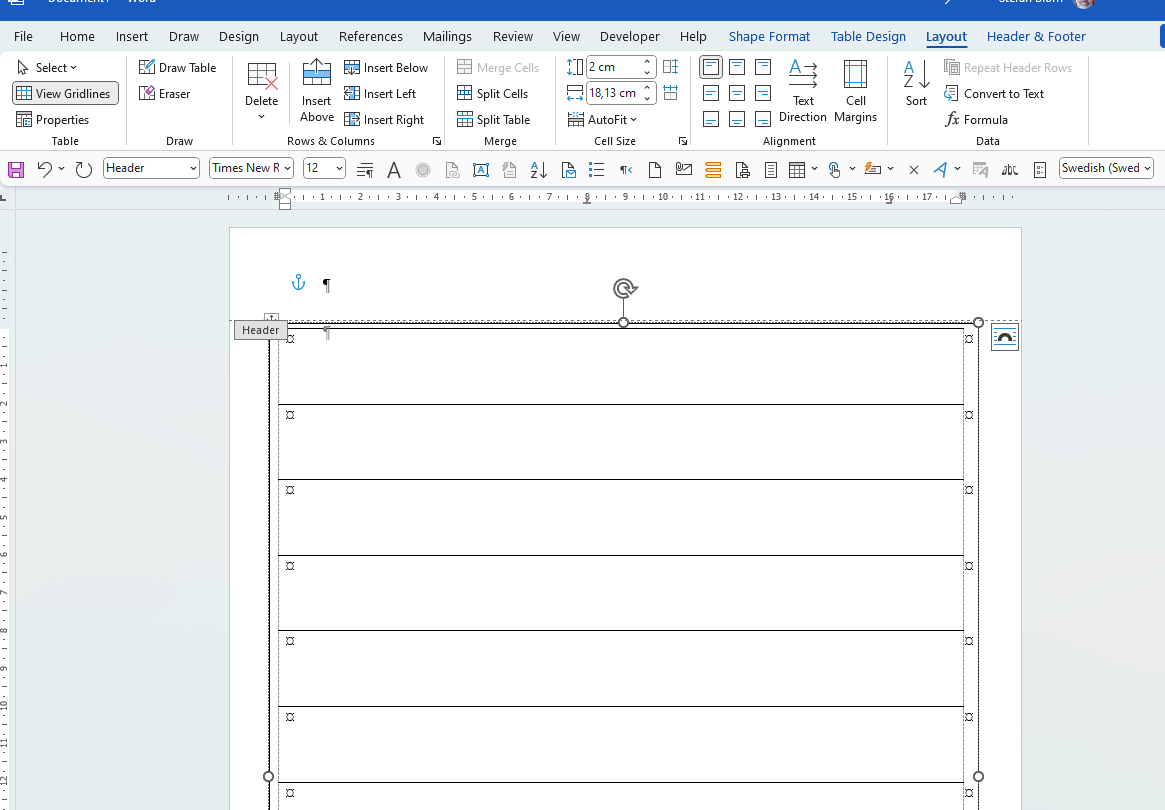
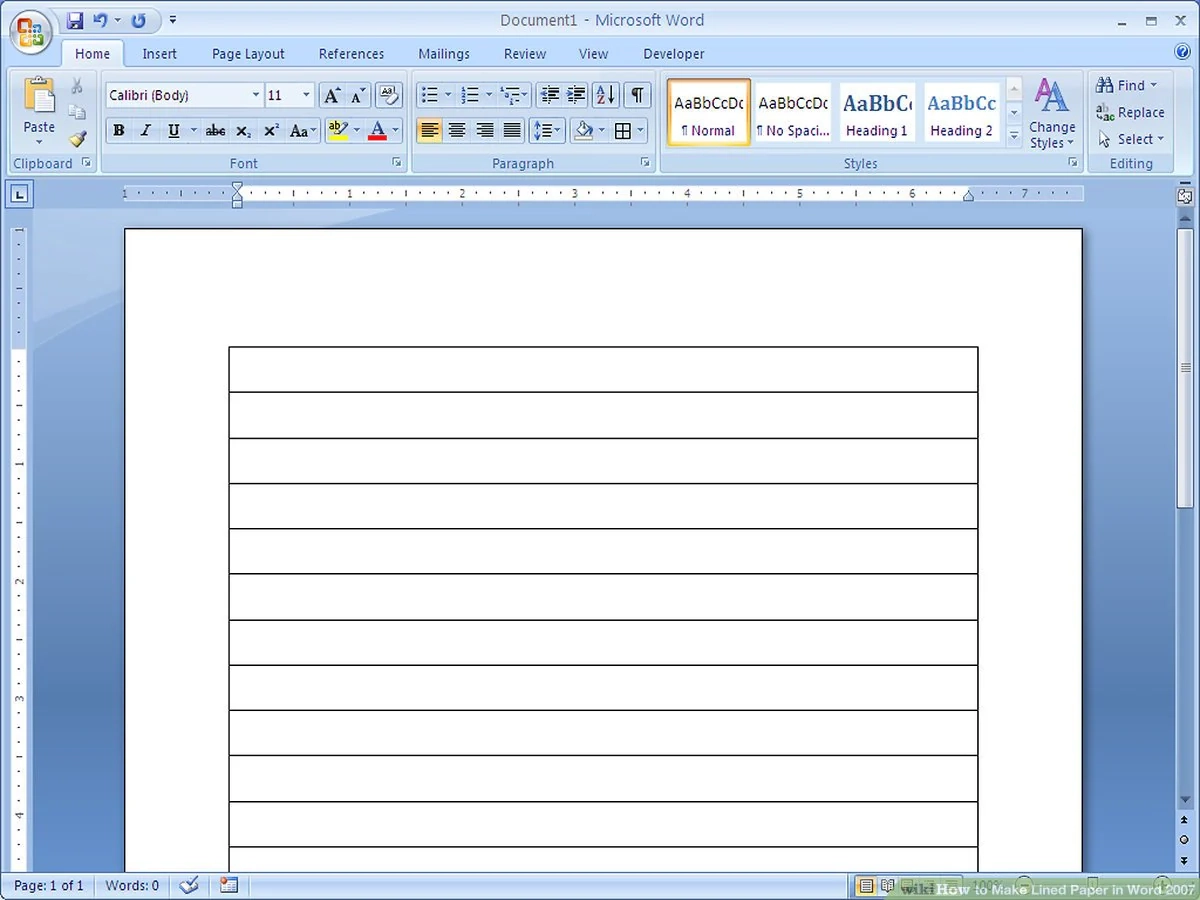
Another option is to use tables. Insert a table with one column and multiple rows. Adjust the row height to create the desired spacing between lines. This method allows for more control over the appearance of your lined paper.
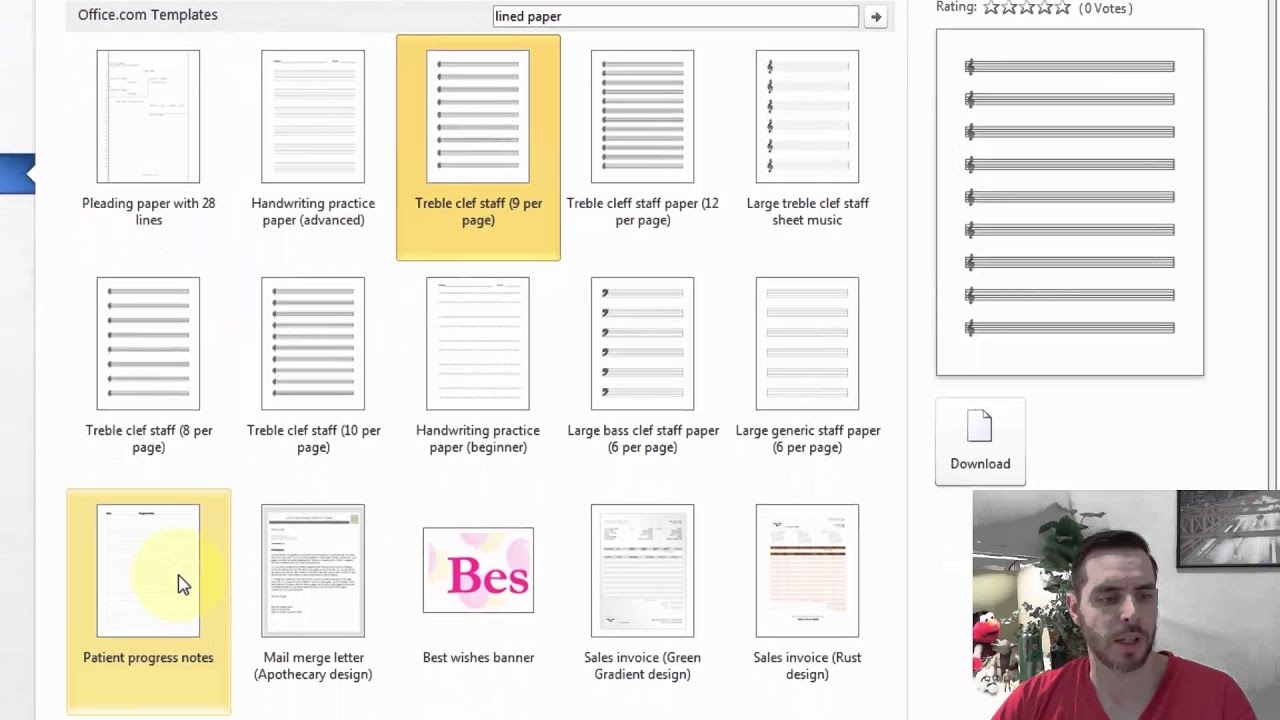
If you prefer a more traditional look, consider using templates available online. Many websites offer free Microsoft Word lined paper templates that you can download and customize as needed.
Creating lined paper in Microsoft Word is an easy way to enhance your writing experience. With just a few clicks, you can have personalized lined pages ready for any project or note-taking session.
In conclusion, whether you’re a student or a professional, Microsoft Word lined paper can be tailored to fit your specific needs. Enjoy the flexibility and creativity it offers for all your writing endeavors.
How To Make Lined Paper In Microsoft Word Softwareg au
How To Make Lined Paper In Word Docs
How To Make Lined Paper With Microsoft Word YouTube
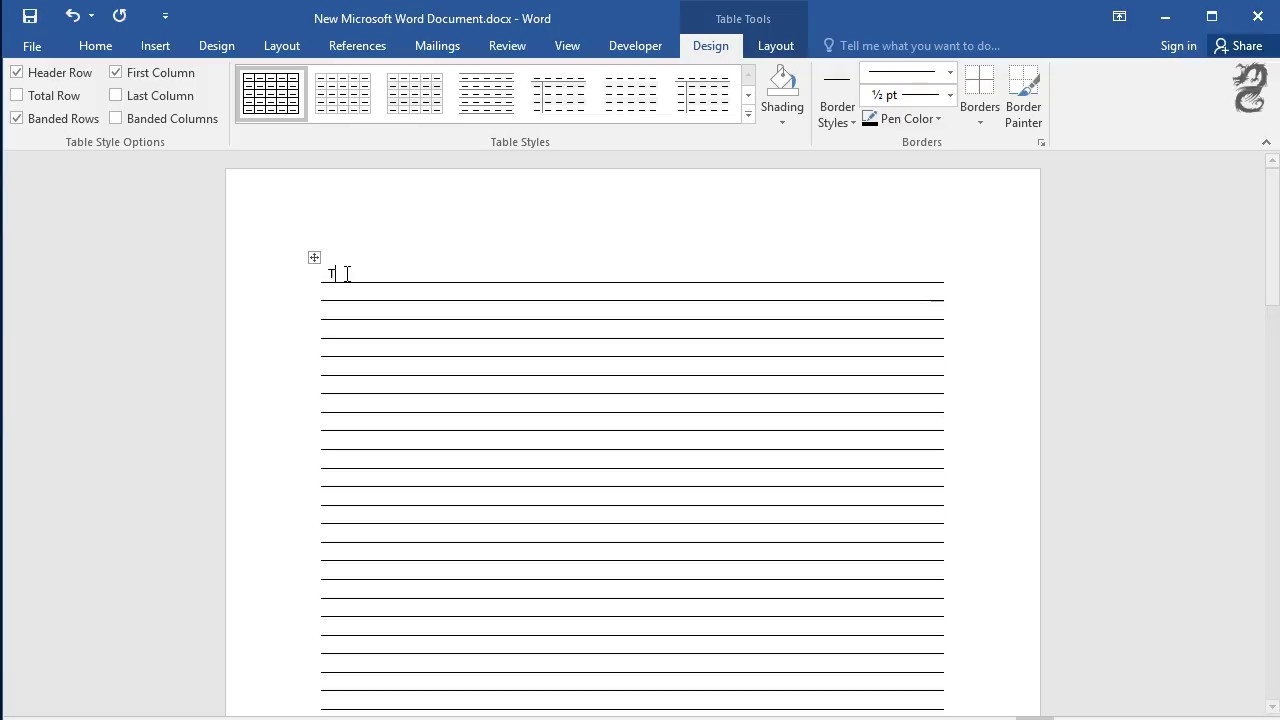
How To Create Lined Paper In Word
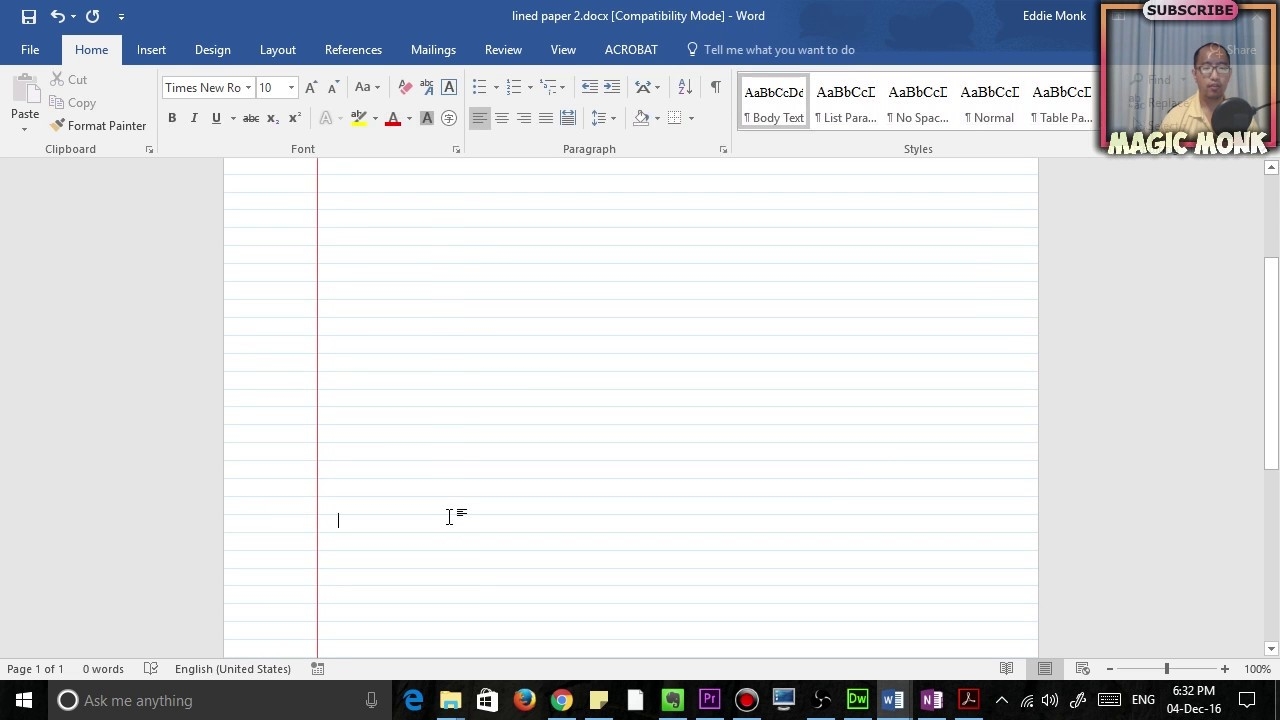
Lined Paper In Microsoft Word PDF